Most widgets for task apps are a picture of your list with a tap target over the top of it.
You look at the widget, you tap the widget, the app opens, and then you do the thing you could already see. The widget saved you nothing except the hunt for the icon.
The three PathDay widgets are built the other way around. Today, Habits and Mantras each do their own work on the Home Screen, and for most of what you do in a day you never open the app at all.
Today
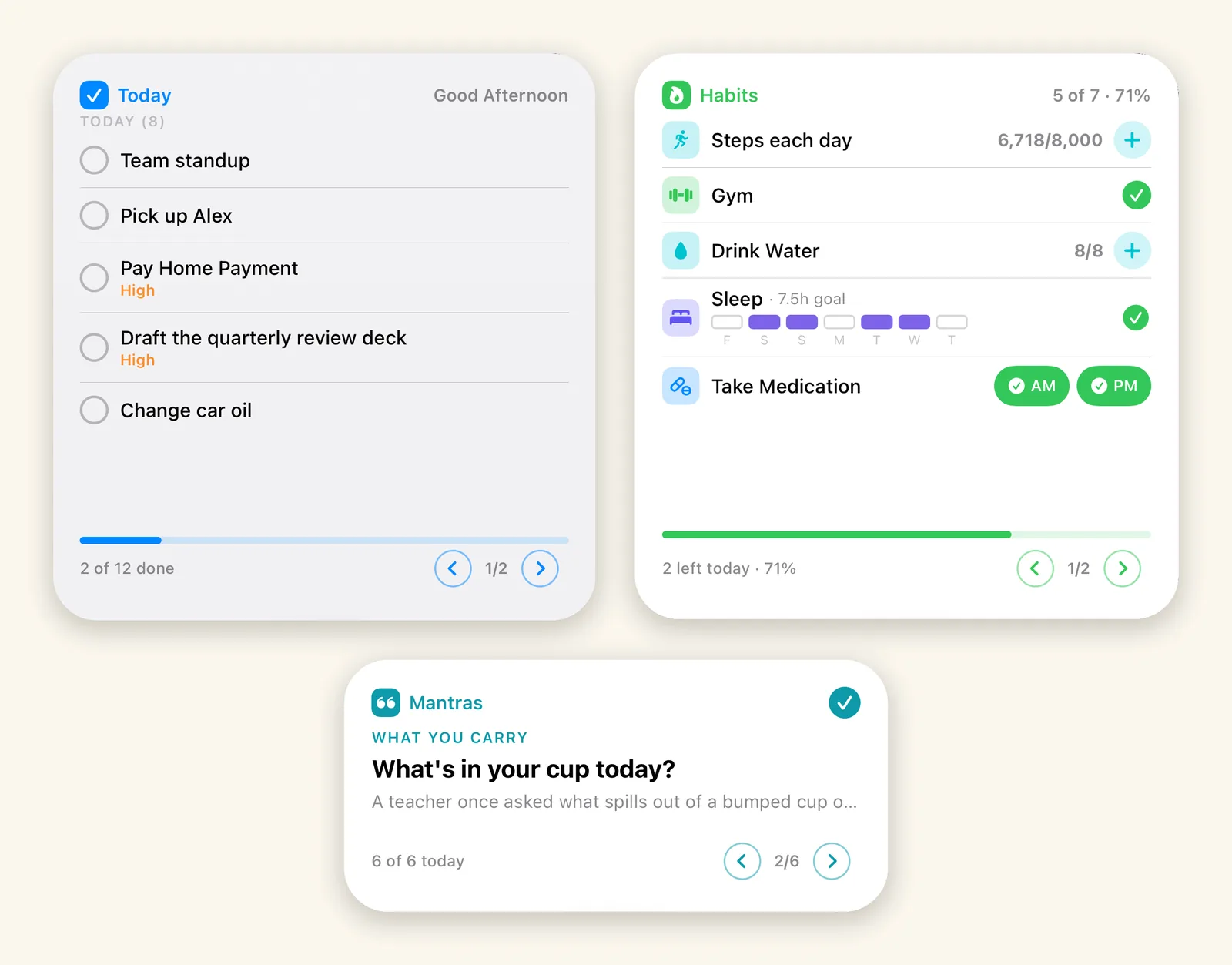
The Today widget asks the same question the app opens with. It greets you, tells you how many tasks the day actually holds, and then lists them in the order Today uses: anything with a time first, then priority, with the priority itself called out on the row.
Every row has a circle. Tapping it completes the task, right there, without launching anything. The line along the bottom is the day in one figure, how many you have closed out against how many the day holds. When tasks are still open from previous days it says so on that same line, because it is easy to feel on top of things when yesterday is out of sight.
Habits
This is the one that took the most work, and it is the one I am most pleased with.
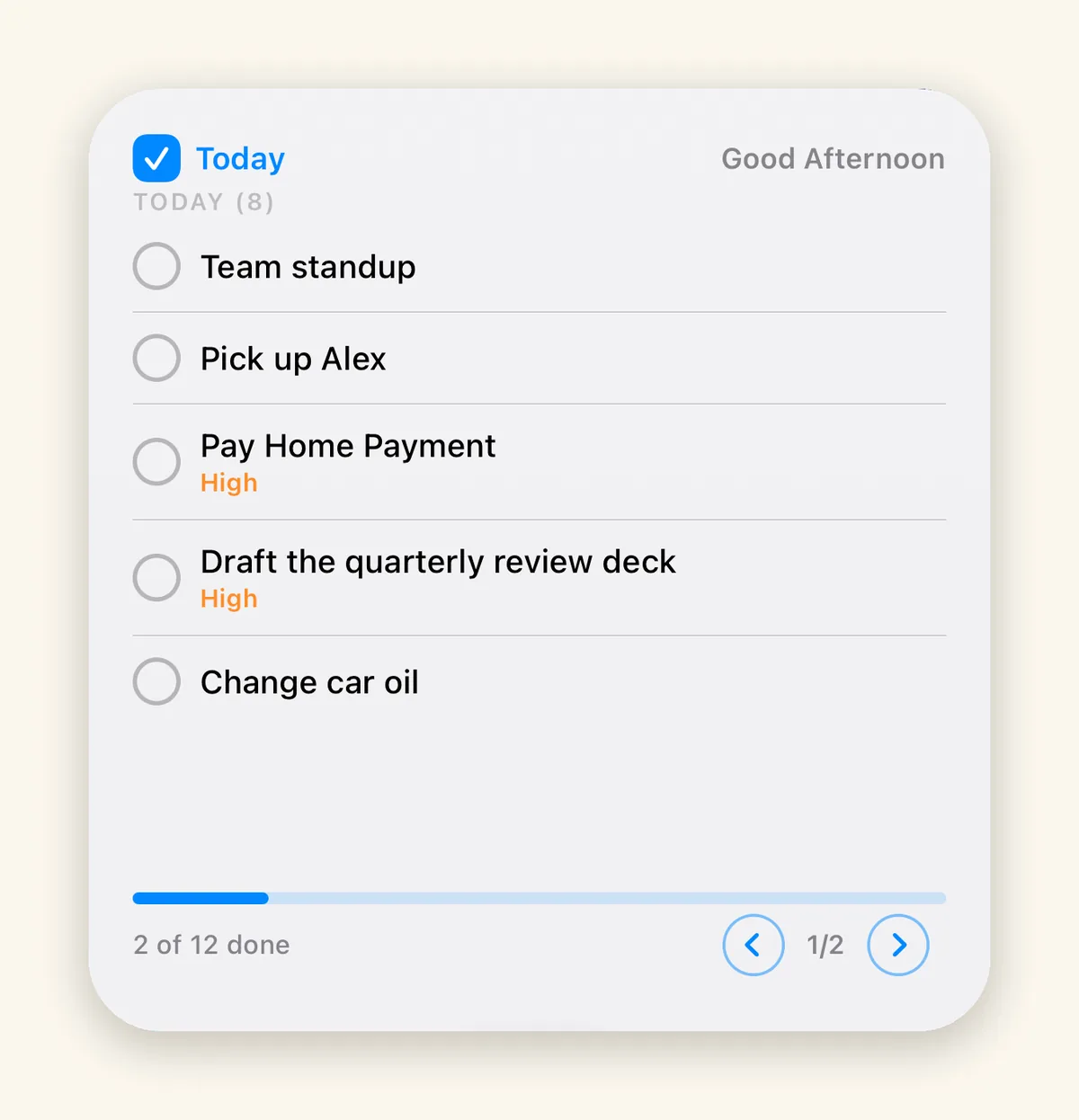
PathDay has five habit types, and they do not all get logged the same way. A habit you either did or did not do needs one circle. A habit you tally through the day needs a running count and something to add to it. A habit with a weekly goal needs to show the week. A habit you take twice a day needs two separate buttons, because logging the morning one should not quietly log the evening one as well.
The easy path would have been to render every habit as a checkbox in the widget and make you open the app for anything more. Instead each type brings its own control to the Home Screen: a circle that fills in when you are done, a plus button beside a running count, a row of seven bars for the week with today in position, and separate AM and PM buttons for doses. All of them log in place.
Mantras
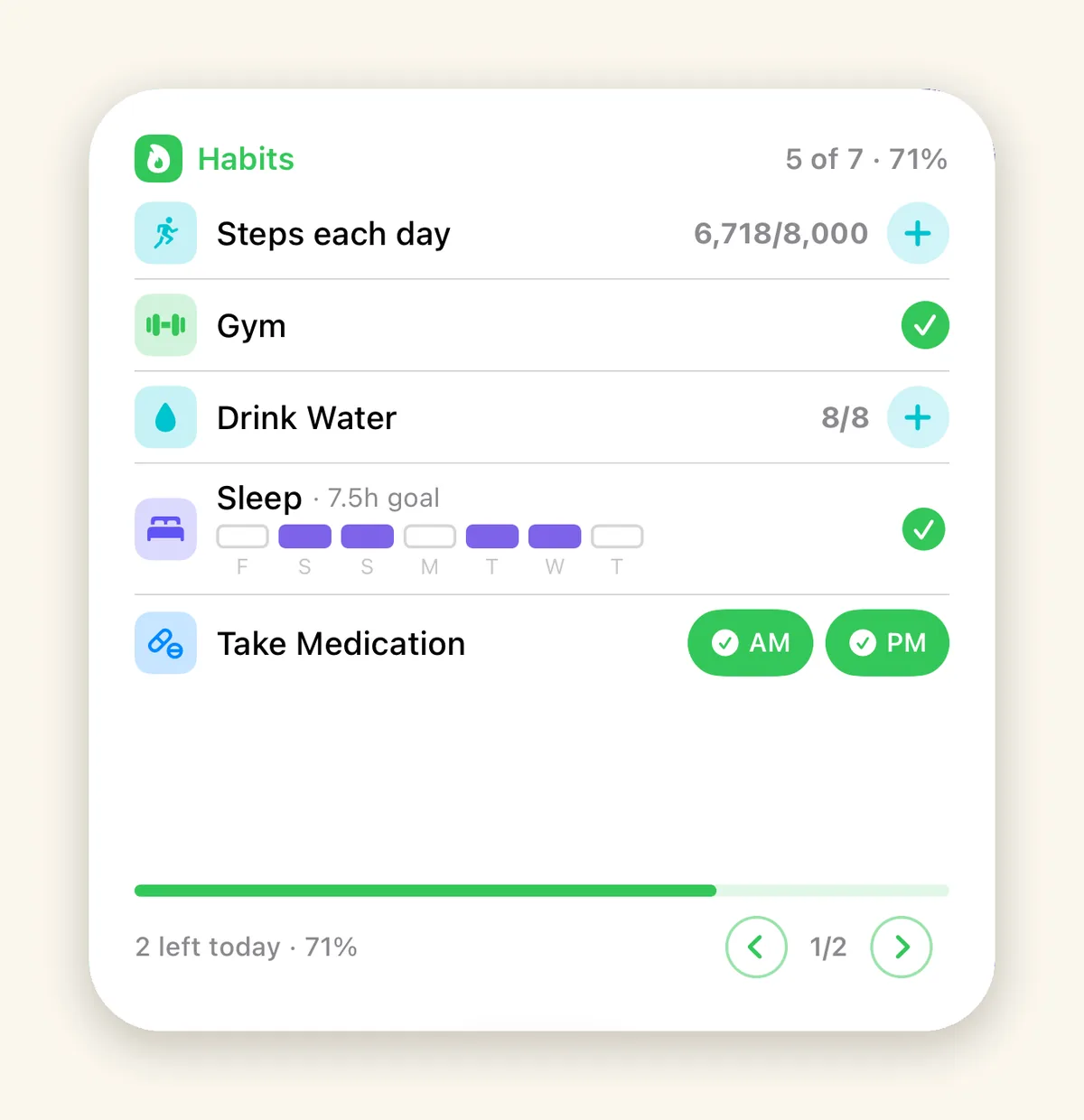
The Mantras widget shows one mantra: its category, its title, and the first line of it. There is a circle in the corner to mark it read, which is what keeps the mantra streak going, and the footer counts how many of the day’s mantras you have read.
It is the quietest of the three, and it does the most to make PathDay a daily practice rather than a list. A mantra you have to go and find is a mantra you stop reading by Thursday.
Paging, because a widget is small
All three widgets page. The arrows in the bottom corner move through whatever does not fit, and the counter between them tells you where you are. Two pages of tasks in the shot above, two of habits, six mantras. The widget stops being a preview of the first few things and becomes somewhere you can actually work through the day.
What they do not do
It is worth being clear about the edges.
There are no Lock Screen widgets, no Apple Watch complications, and no Control Center controls. What exists is the Home Screen on iPhone and iPad, and the desktop on the Mac, in small, medium and large. The one thing PathDay does put on the Lock Screen is the focus timer, which runs as a Live Activity while a session is going, and that is a different mechanism from a widget.
There is a full Apple Watch app, which is also a different thing from a complication. It opens on Today and carries Previous Days, Ongoing, Habits and Mantras with it.
Adding them
Long press an empty part of the Home Screen, tap Edit, then Add Widget, and search for PathDay. On the Mac, right-click the desktop, choose Edit Widgets, and search for PathDay there. All three appear, each in three sizes. They read the same synced data as the app, so whatever you tap on the Home Screen is already true everywhere else by the time you open it.
PathDay is on iPhone, iPad, Apple Watch and Mac. Free.