If you used TasksDojo, your productivity system does not have to start over.
TasksDojo was renamed aProDay in its final update, and PathDay is where it continues. PathDay keeps the same way of working: capture into the Inbox, process it, plan Today, and build the habits and mantras that keep you on your path. Your data can come with you.
The move is one file. The final TasksDojo update, now called aProDay, saves everything into a single .tdz file, and PathDay reads it back in. It takes about two minutes.
Step 1: Save your data from TasksDojo
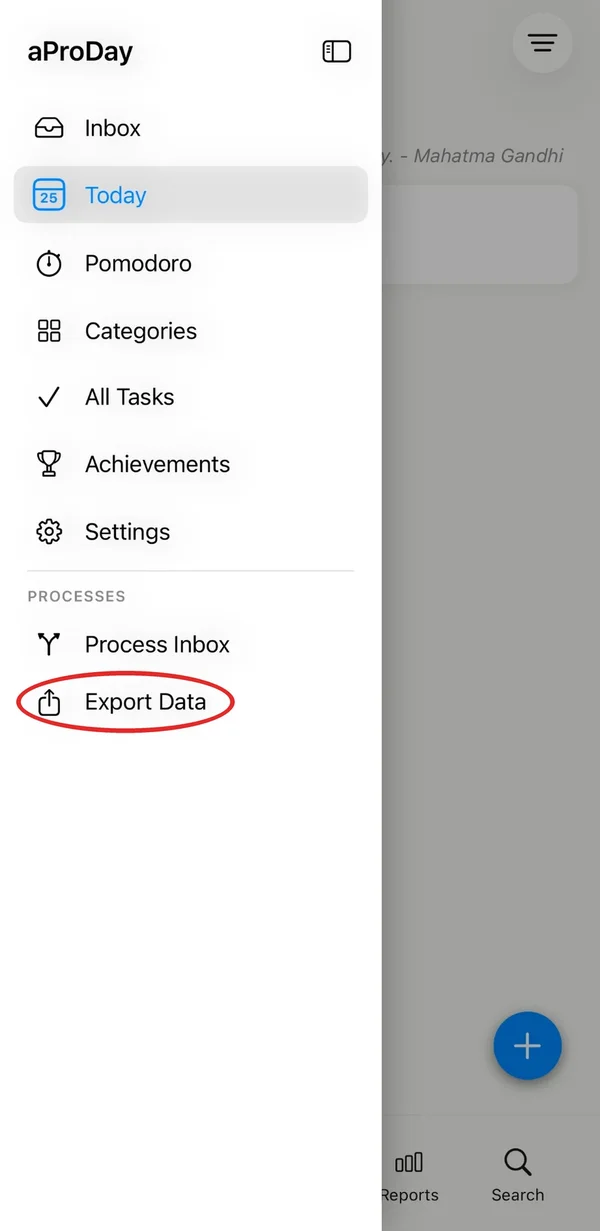
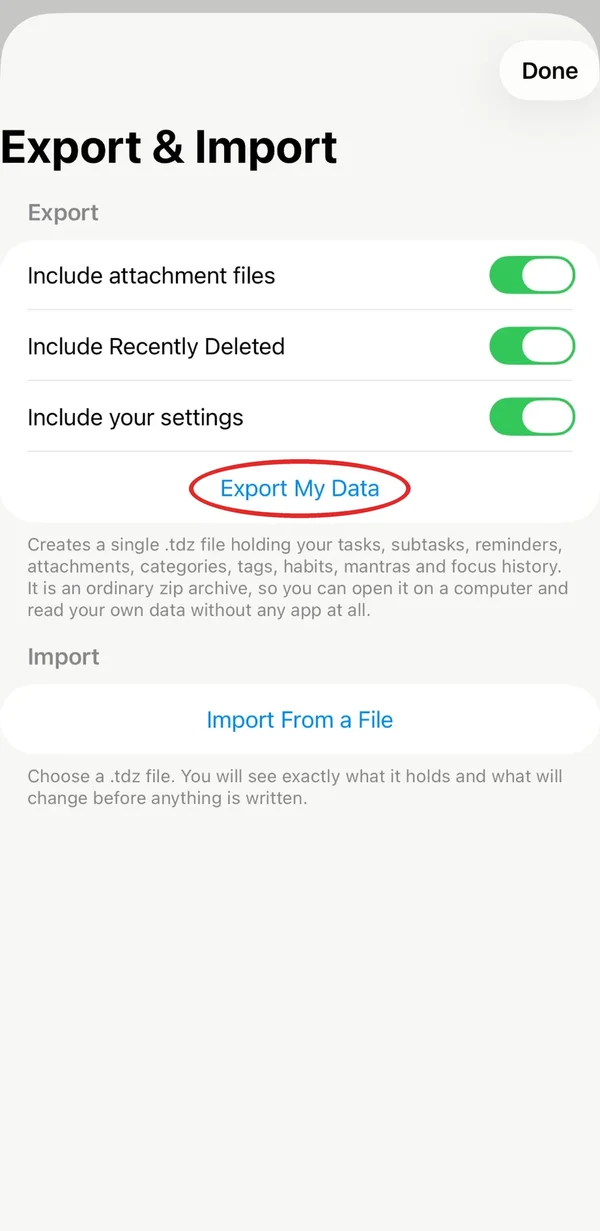
First, update TasksDojo in the App Store. After the update its name on your Home Screen changes to aProDay; your data stays where it was. Open aProDay, open the menu, and tap Export Data under Processes. Keep all three switches on so your attachments, Recently Deleted items and settings come along, then tap Export My Data and save the file to iCloud Drive.
Step 2: Get PathDay
PathDay is free on iPhone, iPad, Apple Watch and Mac.

Step 3: Import the file
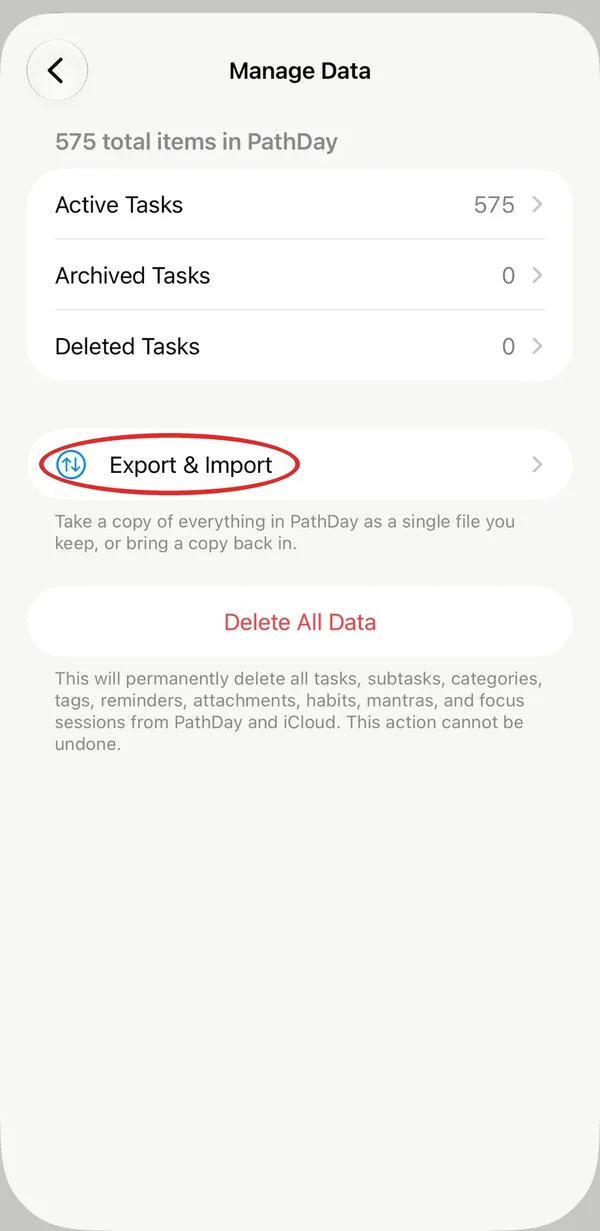
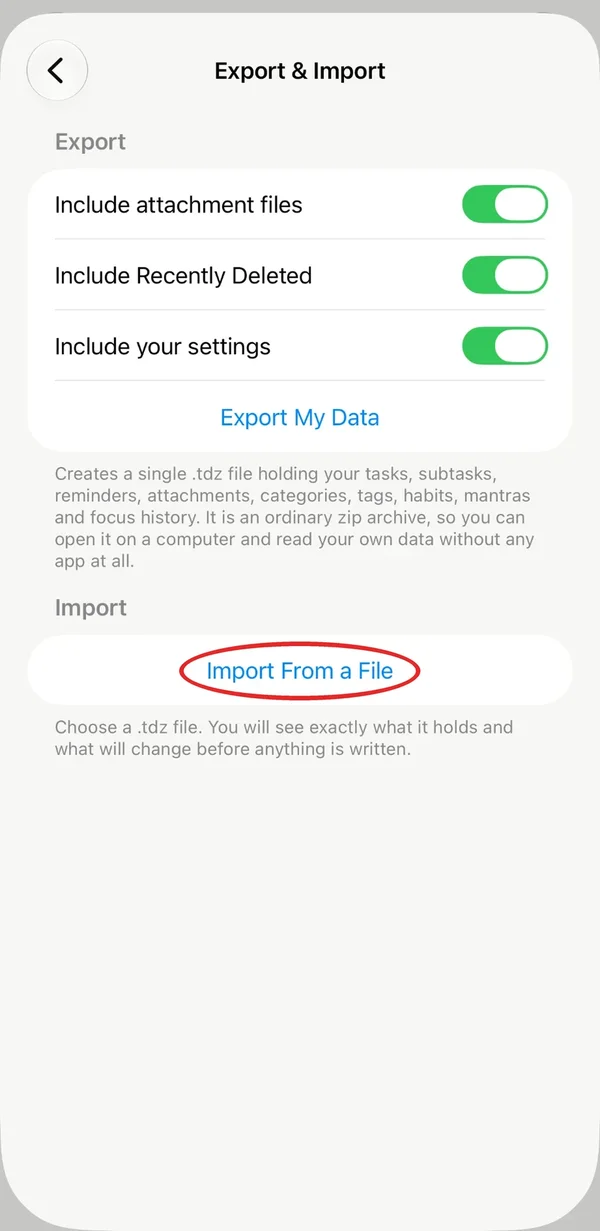
In PathDay, open the menu and go to Settings, then Manage Data, then Export & Import. Tap Import From a File and pick the file you saved.
Step 4: Review before anything changes
PathDay shows you exactly what the file holds and what it will add before it writes a thing. Confirm, and your tasks, subtasks, categories, tags, habits, mantras and focus history are in place.
Import once, on one device. PathDay syncs the result to your other devices through iCloud. Keep TasksDojo (now aProDay) installed until you have checked that everything arrived.
Your data stays yours
The same Export & Import screen in PathDay lets you take a full copy whenever you like, so a backup is always one tap away.
Questions about the move? The PathDay FAQ covers the common ones, or reach us through Support & Feedback in PathDay’s Settings.