The biggest idea in PathDay is the Inbox.
It gives you somewhere to put a thought without having to organize it first. Add what you need to do to inbox and get back to what you were doing. When you have time to think through what you’ve collected, click on Process Inbox to work through items in your inbox.
The full Inbox is on iPhone, iPad and Mac, and the focus timer sits alongside it. But I want to start with how capture and processing work together, because that’s where most of the work went.
Inbox is a place for things you haven’t decided about
An inbox in most apps is just a place to drop tasks, with no path forward.
In PathDay, an Inbox task stays undated until you decide when to do it, and you can add details along the way without taking it out of the queue.
That makes capture simple. You don’t need to choose a date, find the right category, or decide how important something is just to get it out of your head. You can also capture from the floating plus on the tab bar with Inbox already selected.
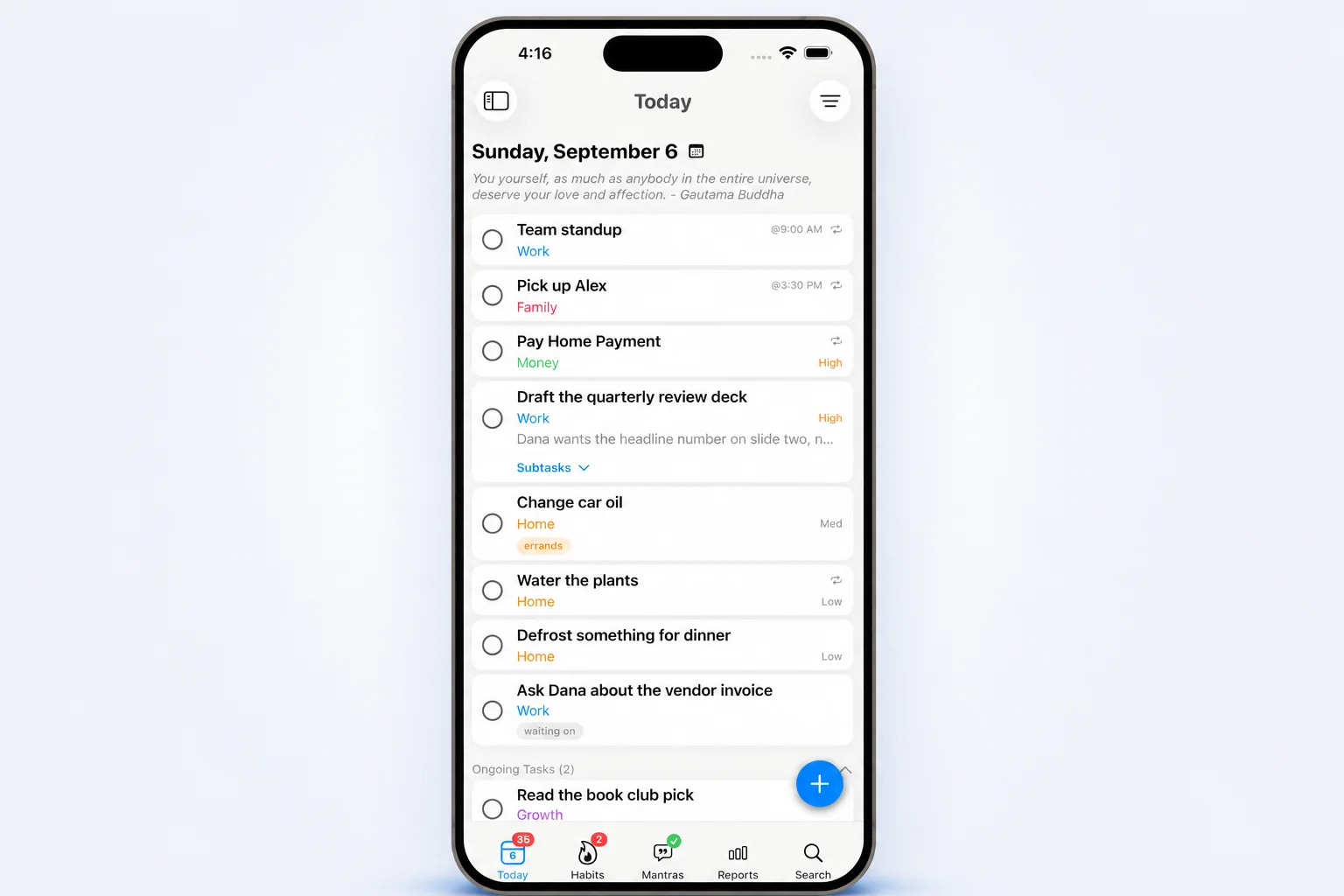
Inbox items don’t become forgotten tasks in your backlog or show up in Today as work you’ve committed to doing. If something sits in your Inbox for a few days, it’s still there waiting for a decision.
How processing works
Capturing a thought takes a moment. Deciding what to do with it can take a little longer.
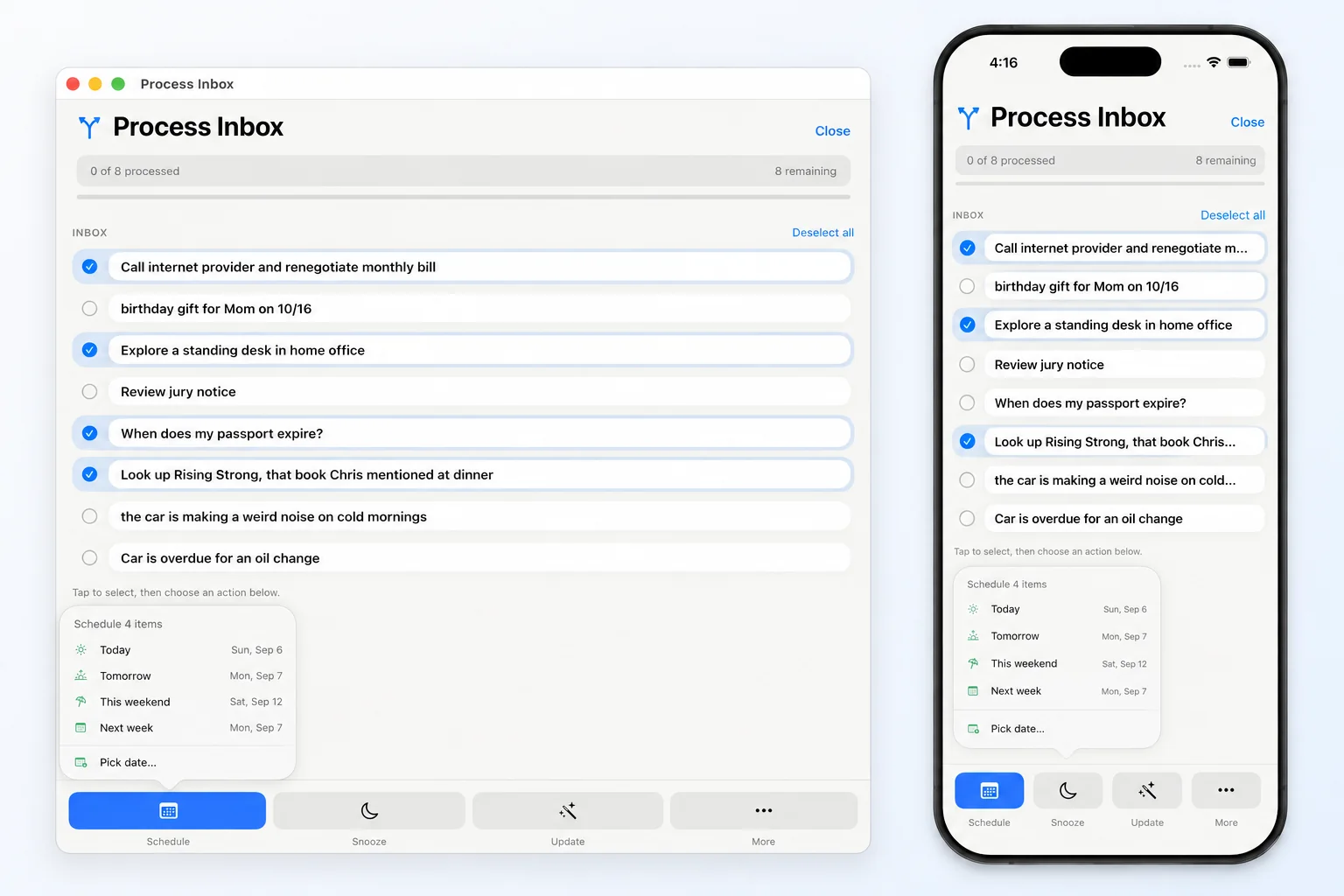
Process Inbox gives that second step its own space. Open it from the Process Inbox section at the bottom of the side menu, wherever you happen to be in the app.
Select an item, or several that need the same action, then choose Schedule, Snooze, or Update at the bottom of the screen.
- Schedule when you know when you want to do something.
- Snooze when you want to revisit it later.
- Update when you want to add a category, priority, or tag but still have a decision to make.
You can handle similar items together. If three things can wait until next week, select all three and snooze them in one go. A progress strip keeps track as you work through the queue, and Undo lets you take back a decision you made too quickly.
Update has turned out to be especially useful. Sometimes I know which category a task belongs in, but I’m not ready to schedule it. Now I can add that detail and leave it in the Inbox. Updating an item doesn’t count it as processed, because it still needs my attention.
On iPhone, processing runs full screen. On Mac, it opens in its own resizable window so there’s room to see and work through the queue.
When the answer to a task is “later”
You won’t always be ready to schedule something when you review it.
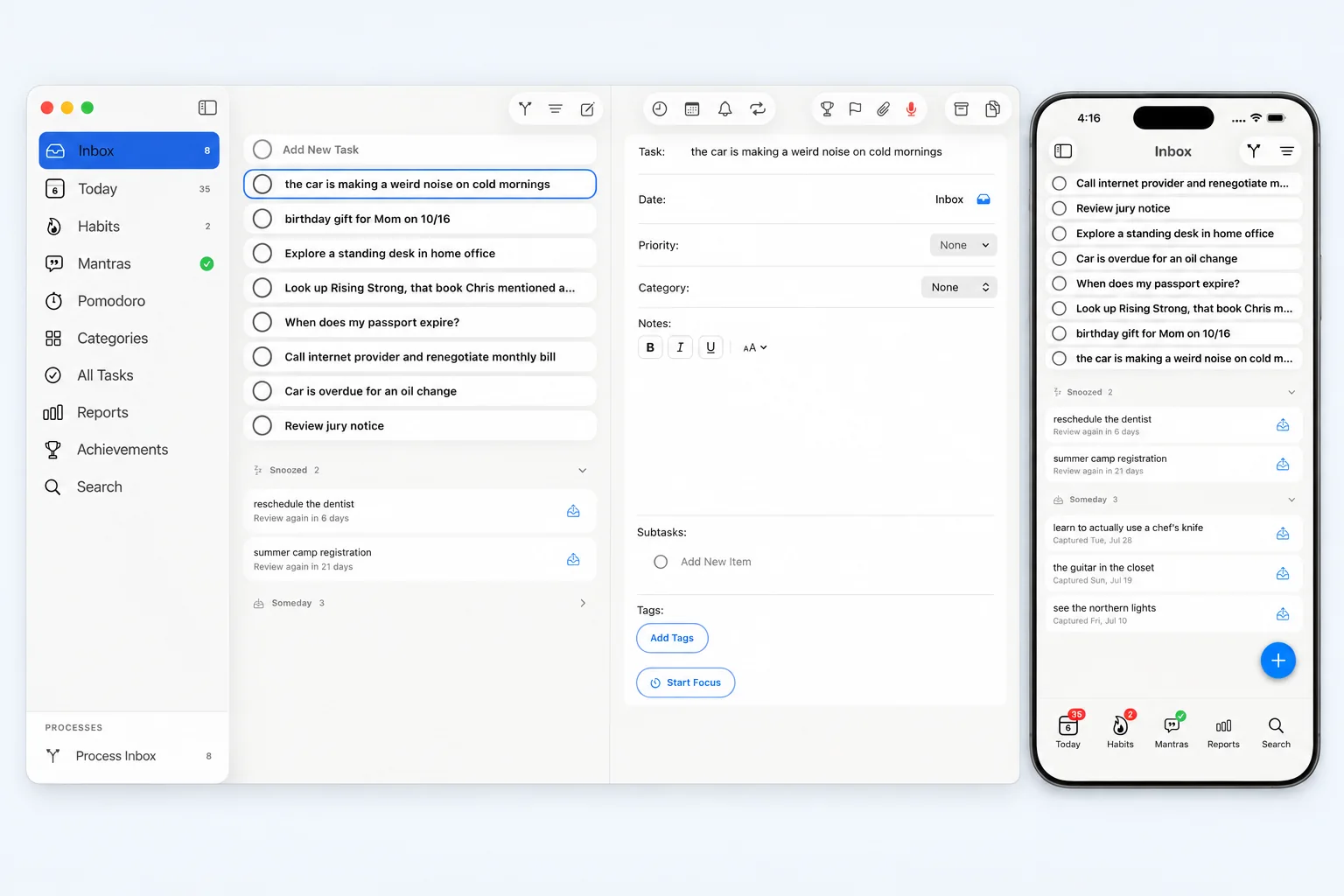
Snooze lets you put an item aside for a week or a month. It returns automatically when that time is up, ready for another look. Snoozing doesn’t schedule the task. Use snooze to set a time to reconsider it. The row shows how long is left in plain language, such as “review again in 7 days.”
For ideas you want to keep without setting a review date, there’s Someday.
Someday items sit in their own section, outside the active queue and its count. They won’t return on their own. When you choose to review them, the app takes you through them one at a time: activate it, keep it, or delete it.
I wanted there to be room for all three answers. Some ideas become useful months later. Others stop mattering, and you should be able to let them go.
The same Inbox on iPhone, iPad, and Mac
Mac and iPad use the same Inbox screen as iPhone, with the same processing tools.
On Mac, the Inbox has a permanent sidebar row with a waiting count. You can drag a task from Today or All Tasks onto it to return that task to the Inbox. That’s useful when you’ve put too much on your day and need to reconsider a few things.
On iPad, a three-column layout gives the Inbox more room. Add New Task is also pinned above Today and All Tasks on both devices, so you don’t have to scroll to find it.
One important detail when moving tasks
Moving a task into the Inbox clears both its scheduled date and its due date. The app warns you before saving, and Undo restores the deadline if you change your mind.
This keeps Inbox items undated and prevents them from appearing in Today or on Apple Watch as active work.
Focus on what is important
The focus timer is built around the same idea. Open Timer setting allows you to count the minute and hours until you press Stop, then records the session against your day and the task you were working on. Pomodoro keeps cycling until you stop it, and sounds let you know when a period ends, with an option to turn them off in Settings. On Mac, a floating timer gives you Pause, Skip, and Stop controls while you work in other apps.
Categories
Each category card lets you choose Today, month to date, year to date, or all time, with completion counts and focused minutes reflecting that window.
The part I care most about is having a clearer path from a quick capture, whether it is an idea, a task, or a passing thought, to a decision. You can write something down while it’s on your mind, leave it alone while you’re busy, and come back when you have the attention to decide what happens next.
PathDay is on iPhone, iPad, Mac, and Apple Watch. Free.